

Product Management for Retail POS
Everything in a POS starts with the product list. Set products up well and checkout is fast and stock is accurate. In MuchLogic POS, products are added through a Goods Received Note (GRN) form, so adding a product and receiving its stock is one step.
What you can do
- Complete product records. Name, extra language names, SKU, barcode, shortcut name, category, brand, photo, marked, selling and cost prices, a weight-based flag, stock and a tax category.
- Categories and brands. Brand spellings are matched, so “maliban” joins “Maliban” instead of creating a duplicate.
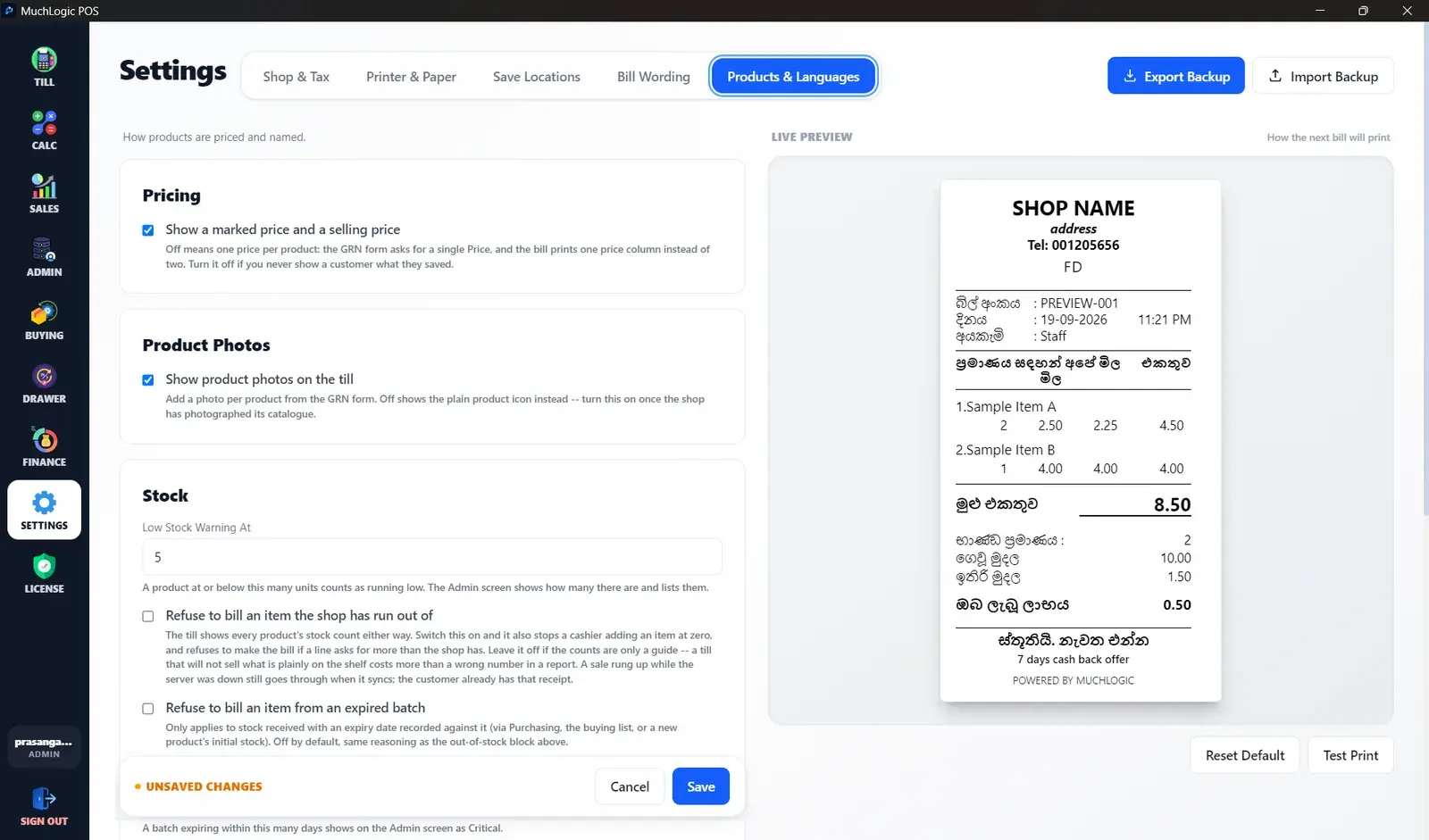
- Product photos. Optional photos appear on the till.
- Multi-language names. Give products names in each language your shop uses.
- Archive, don’t delete. Archiving keeps history intact for products that have already been sold.
- Cost prices stay private. Cost prices are admin-only.
Who it's for
- New shops building their first product catalogue
- Existing shops moving from paper or spreadsheets
Related features
Product Management: common questions
How do I add products to MuchLogic POS?
Through the Goods Received Note (GRN) form, which records the product’s details and the stock received together. See the documentation.
What happens to a product I no longer sell?
Archive it. Archiving instead of deleting keeps the history of sold products intact.
Ready to try MuchLogic POS?
Install it, try it free for 7 days, then activate with a licence key from Gumroad.