

POS Finance, Tax and Till Cash-Up Software
Knowing whether the shop is really making money means tracking more than sales. MuchLogic POS includes finance, tax and till-session tools for the owner.
What you can do
- Net profit. Net profit = gross profit + other income − expenses.
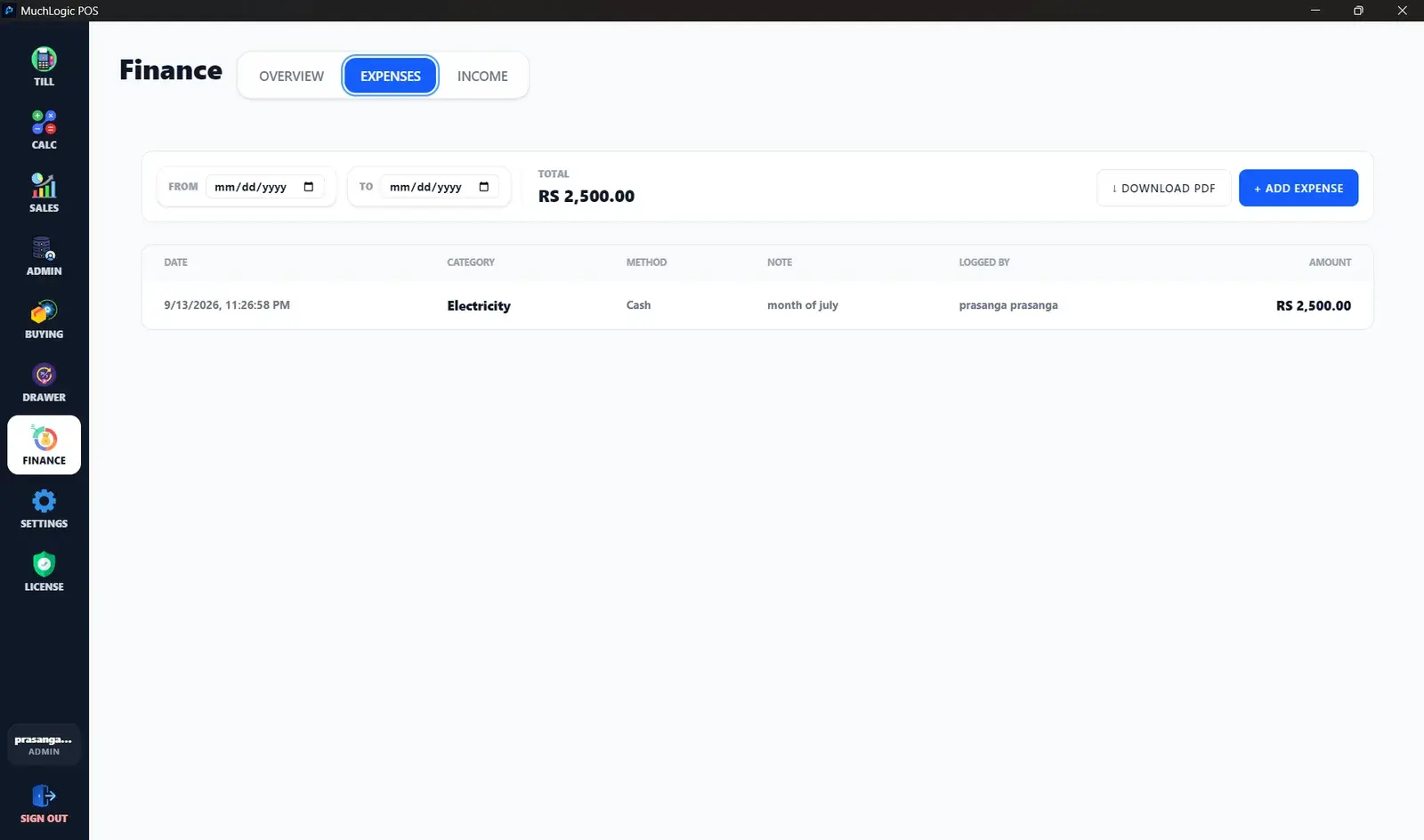
- Overview, Expenses and Income. An overview plus append-only Expenses and Income logs, with PDF export and a cash versus non-cash distinction.
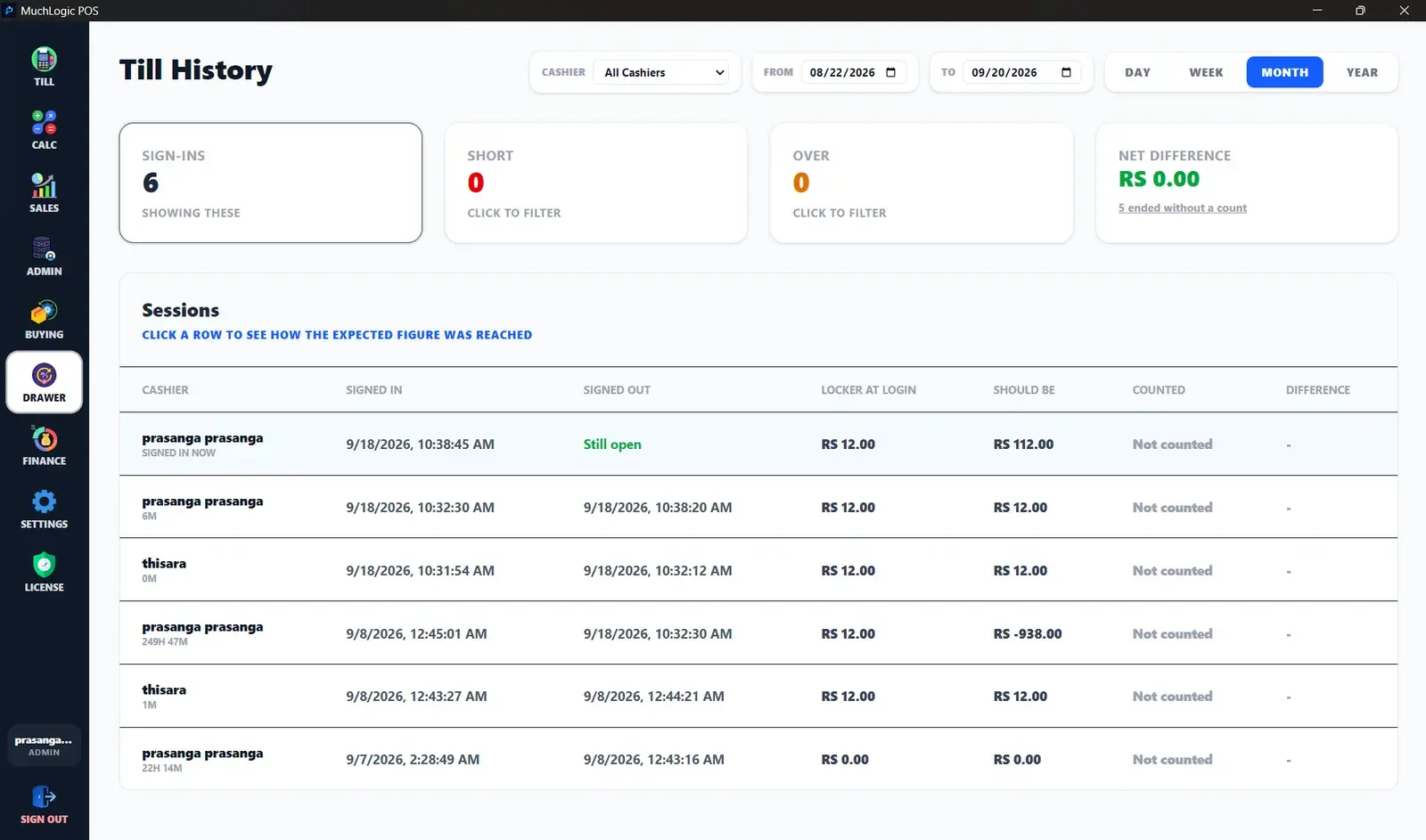
- Till sessions (Drawer). Record the opening locker amount and the closing cash count. Expected versus counted is compared, short or over is flagged, and abandoned sessions are closed automatically.
- Flexible tax. VAT on or off, inclusive or added at checkout, a custom label and registration number.
- Named tax categories. Set a tax category per product — for example “Food 0%”. Tax is worked out per line and rounded so the bill adds up.
- Configurable currency. Choose your own currency symbol.
- Admin-only. Finance screens are visible only to admins.
Who it's for
- Owners who want a real profit figure
- Shops that cash up the drawer every day
- Businesses registered for VAT or a similar tax
Related features
See it
Finance, Tax & Till Sessions in MuchLogic POS
Finance, Tax & Till Sessions: common questions
How does MuchLogic POS calculate net profit?
Net profit = gross profit + other income − expenses. Expenses and income are recorded in append-only logs.
Does MuchLogic POS support VAT?
Yes. VAT can be on or off, inclusive or added at checkout, with a custom label and registration number, and named tax categories per product.
What are till sessions?
A till session tracks the cash drawer from the opening amount to the closing count, compares expected with counted cash, and flags anything short or over.
Ready to try MuchLogic POS?
Install it, try it free for 7 days, then activate with a licence key from Gumroad.